How to Set Up TiviMate IPTV in the UK: Step-by-Step Guide (2026)
By the IPTV United Kingdom team
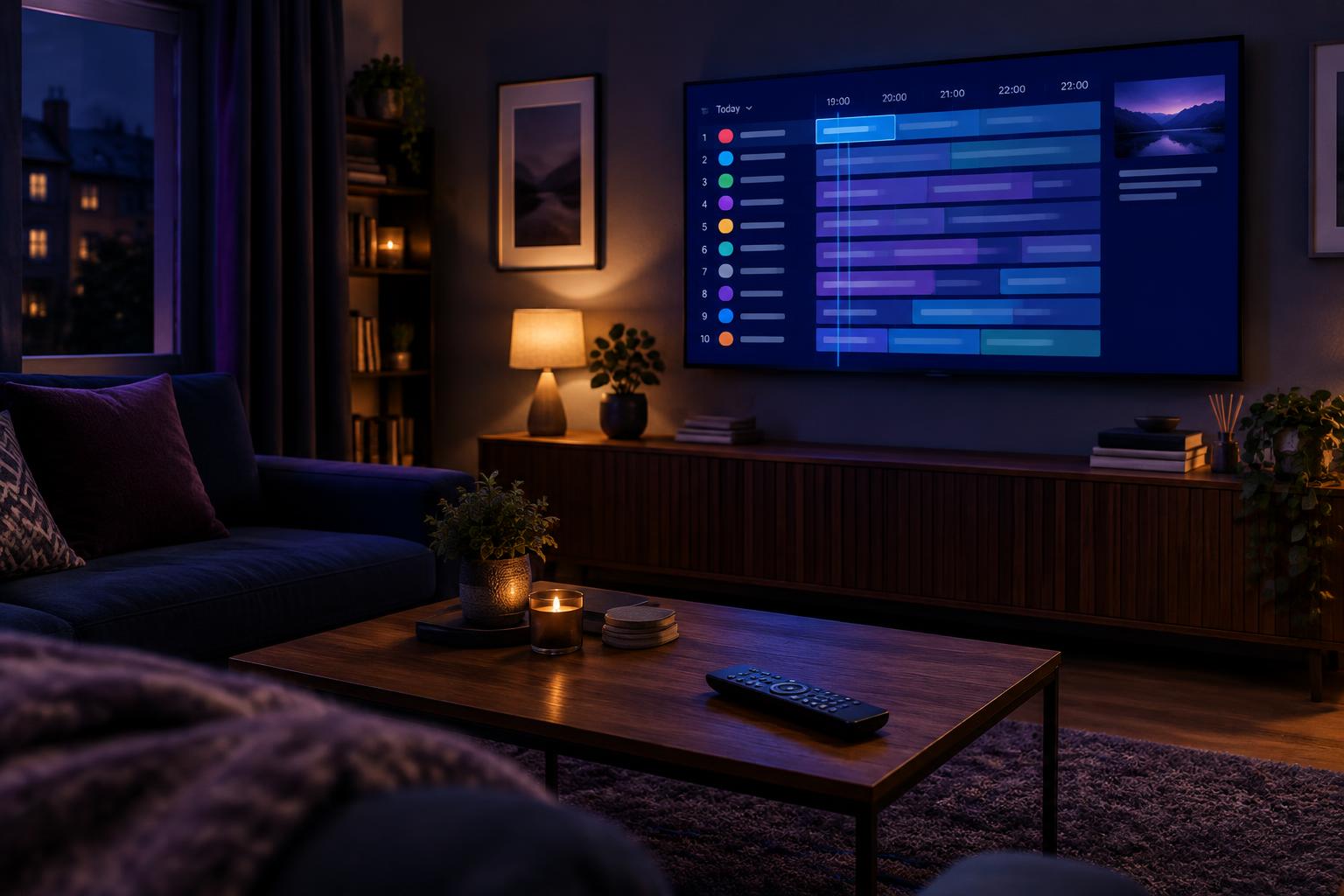
If you have just signed up for an IPTV subscription in the UK, the next question is simple: which app should you use to watch it? For many viewers the answer is TiviMate. It has a clean, TV-style layout, a fast channel guide and works on the devices most UK homes already own, including the Amazon Firestick, Fire TV Cube, Android TV boxes and Google TV.
This guide walks you through the whole process: installing TiviMate, adding your playlist, loading the TV guide (EPG), tidying your channel list and fixing the most common problems. You do not need any technical skills. Most people are watching within 10 minutes.
What Is TiviMate?
TiviMate is an IPTV player. That is an important point: TiviMate does not include any channels or content of its own. It is an app that displays the playlist your IPTV provider gives you, in an easy-to-use layout with a full channel guide, favourites, recordings and more.
Because it is only a player, you will always need two things:
- A TiviMate-compatible device
- Login details or a playlist link from your IPTV provider
Only use playlists from providers you have a valid subscription with and the right to access.
What You Need Before You Start
- A compatible device: Amazon Firestick (4K, 4K Max or Lite), Fire TV Cube, Android TV or Google TV box, Nvidia Shield, or a smart TV running Android TV.
- A stable internet connection: around 10 Mbps per stream for HD and 25 Mbps or more for 4K. A wired Ethernet connection is best where possible.
- Your subscription details: this will be either an M3U playlist URL, Xtream Codes login details (server URL, username and password), or a Stalker portal address. Your provider will send these after you subscribe.
- A few minutes: the setup itself is quick.
Step 1: Install TiviMate on Your Device
On an Amazon Firestick or Fire TV
- From the Fire TV home screen, select Find, then Search.
- Type TiviMate and choose TiviMate IPTV Player from the results.
- Select Get or Download and wait for the app to install.
- If TiviMate does not appear in your region or on your model, you can install it with the free Downloader app instead. Install Downloader from the Amazon Appstore, enable installing apps from this source in your Fire TV settings, then enter the official TiviMate download link when prompted.
On Android TV or Google TV
- Open the Google Play Store on your TV or box.
- Search for TiviMate IPTV Player.
- Select Install and open the app once it has finished.
Always download TiviMate from an official source such as the Amazon Appstore, Google Play or the developer's own website. Avoid unknown third-party sites.
Step 2: Add Your IPTV Playlist
When you open TiviMate for the first time, it will ask you to add a playlist. You have three main options.
Option A: M3U Playlist
- Select Add playlist.
- Choose M3U playlist.
- Enter the M3U link from your provider. Type it carefully, because a single wrong character will stop it loading.
- Select Next. TiviMate will load the playlist and show how many channels it found.
- Select Done.
Option B: Xtream Codes Login
- Select Add playlist, then Xtream Codes.
- Enter the server address, username and password exactly as your provider supplied them.
- Select Next, then Done.
Many viewers prefer Xtream Codes because it usually loads the channel list and TV guide together without any extra steps.
Option C: Stalker Portal
Select Stalker portal, enter the portal address and your MAC address details as supplied by your provider, then follow the on-screen prompts.
Tip: typing long links with a TV remote is slow. Use the free Fire TV or Android TV remote app on your phone, or plug in a USB keyboard, to make this much faster.
Step 3: Set Up the TV Guide (EPG)
The electronic programme guide shows what is on now and next. Most of the time it loads automatically with your playlist. If you see empty rows in the guide:
- Open Settings in TiviMate.
- Go to Playlists, then select your playlist.
- Open the EPG section and check that an EPG source is listed.
- If it is blank, add the EPG (XMLTV) link supplied by your provider and select Update EPG.
- Give it a minute or two to download, then return to the guide.
If the guide times look wrong, check the EPG time shift option in the same menu and adjust it by an hour or so until the programmes line up with UK time.
Step 4: Organise Your Channels
A full playlist can contain thousands of channels, so spend a few minutes tidying it up:
- Hide groups you never watch. Open the channel groups list and hide whole categories in one go.
- Create favourites. Press and hold a channel to add it to your favourites list for quick access.
- Reorder groups. Move your most-watched categories to the top.
- Use search. TiviMate has a built-in search, so you can jump straight to a channel by name.
Step 5: Unlock TiviMate Premium (Optional)
The free version of TiviMate covers the basics. TiviMate Premium unlocks extras that many regular viewers love, such as multiple playlists, favourites groups, recordings, a customisable guide and catch-up features where your provider supports them.
Premium is activated through the TiviMate Companion app and the developer's own account, and it can be shared across several of your devices. Always buy it from the official app or website only.
Troubleshooting: Common TiviMate Problems
The playlist will not load
- Re-check the URL, username and password for typos or extra spaces.
- Make sure your subscription is active and has not expired.
- Restart the app and try again, or contact your provider to confirm the details.
Channels buffer or freeze
- Restart your router and your streaming device.
- Use an Ethernet cable or move closer to your Wi-Fi router. A 5 GHz connection is usually steadier.
- Pause other heavy downloads or streams on your network.
- Try a lower-quality version of the channel if one is listed.
- Clear the TiviMate cache from your device's app settings, and keep the device updated.
For a longer walkthrough, see our guide on IPTV buffering fixes.
The TV guide is empty
- Confirm an EPG link is set for your playlist and run Update EPG.
- Wait a few minutes after the first load, as large guides take time to download.
No sound or picture
- Try switching the player or decoder in TiviMate's playback settings.
- Restart the device and check that your TV's HDMI input is correct.
Frequently Asked Questions
Final Thoughts
Setting up TiviMate is quick once you have your playlist details: install the app, add your M3U or Xtream Codes login, load the guide and tidy your favourites. From there it is a smooth, TV-style way to browse and watch your subscription.
If you get stuck at any step, our UK support team is happy to help you get up and running.
Ready to get started?
Contact our support team or view our IPTV subscription plans.